Touchpoints may be edited for several reasons, including:
• correcting errors
• completing a previously saved draft.
Touchpoints can only be edited within one month of submission and only by the person who recorded them. If you need to edit a touchpoint submitted by another user, please contact ETO Support.
Editing or viewing a touchpoint for a HIPPY child
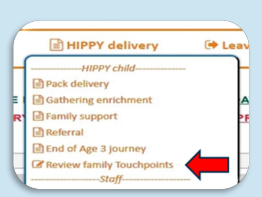
To edit or view a touchpoint for a HIPPY child, use the dashboard menu in the HIPPY Delivery Dashboard:
• Select ‘HIPPY Delivery’
• Choose ‘Review family touchpoints’.
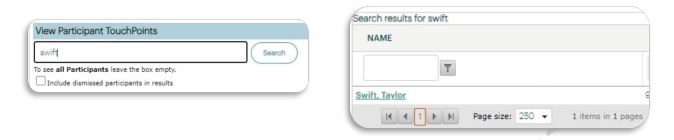
On the next screen, enter the child’s last name and click ‘Search’. If the child has graduated or exited, tick the box for ‘include dismissed participants in results.’ Choose the child's name from the search results list.
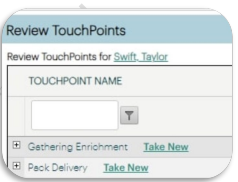
You will see a list of touchpoints associated with the child; these represent general touchpoints, not individual responses.
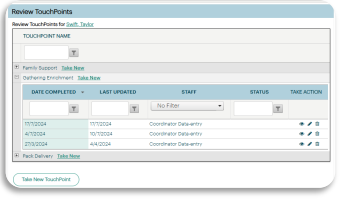
To view individual responses for a touchpoint, click the plus sign (+) to the left of the touchpoint name (red arrow). When viewing touchpoint responses recorded against the selected child, the screen will display responses. On the far right of the table, you will see action icons:
• Eye icon: View a touchpoint response
• Pen icon: Edit a touchpoint response (Note: The edit icon is only available for touchpoints you have submitted.)
Editing or viewing a touchpoint for a staff member
To edit or view a touchpoint for a staff member, go to the HIPPY Delivery Dashboard, select ‘HIPPY Delivery’ > ‘Review staff touchpoints’. Follow the same process as for editing and viewing a touchpoint for a HIPPY child.
Was this article helpful?
That’s Great!
Thank you for your feedback
Sorry! We couldn't be helpful
Thank you for your feedback
Feedback sent
We appreciate your effort and will try to fix the article