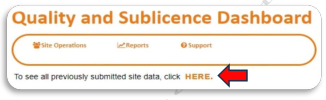
To view and/or edit touchpoints within the Quality and Sublicence Dashboard: Click on the hyperlinked word, ‘HERE’, below the dashboard menu.
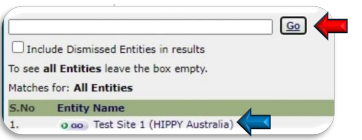
On the next screen, leave the search box empty and click ‘Go’. A table will appear below the search box. Select your site name from the table.
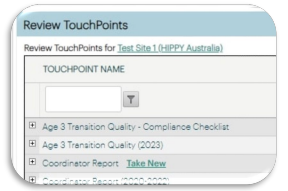
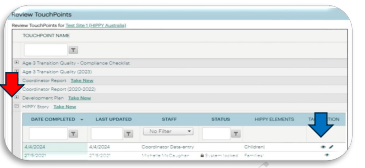
Click the plus sign (+) (red arrow) to view individual touchpoint responses for a specific touchpoint. Use the eye icon (blue arrow) to view the details of a particular response. If you submitted the touchpoint, the pen icon, will also be available for editing the response.
Was this article helpful?
That’s Great!
Thank you for your feedback
Sorry! We couldn't be helpful
Thank you for your feedback
Feedback sent
We appreciate your effort and will try to fix the article