Accessing ETO Reports
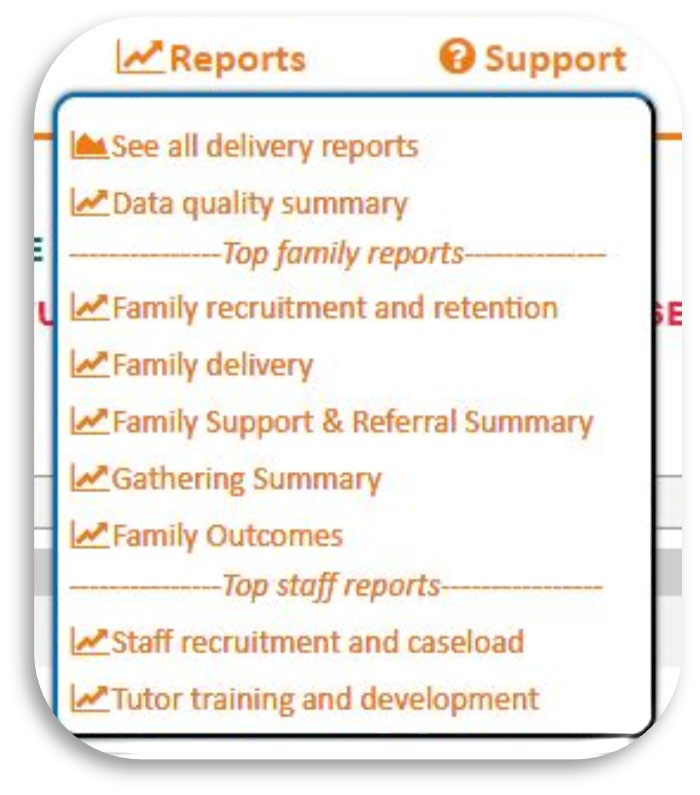
Use the reports menu in either the HIPPY Delivery Dashboard or the Quality and Sublicence Dashboard.
Available reports differ depending on the specific dashboard and access level.
Follow these steps:
Move mouse cursor over Click the reports menu and select the desired report, or “ See all delivery reports” available in that dashboard.
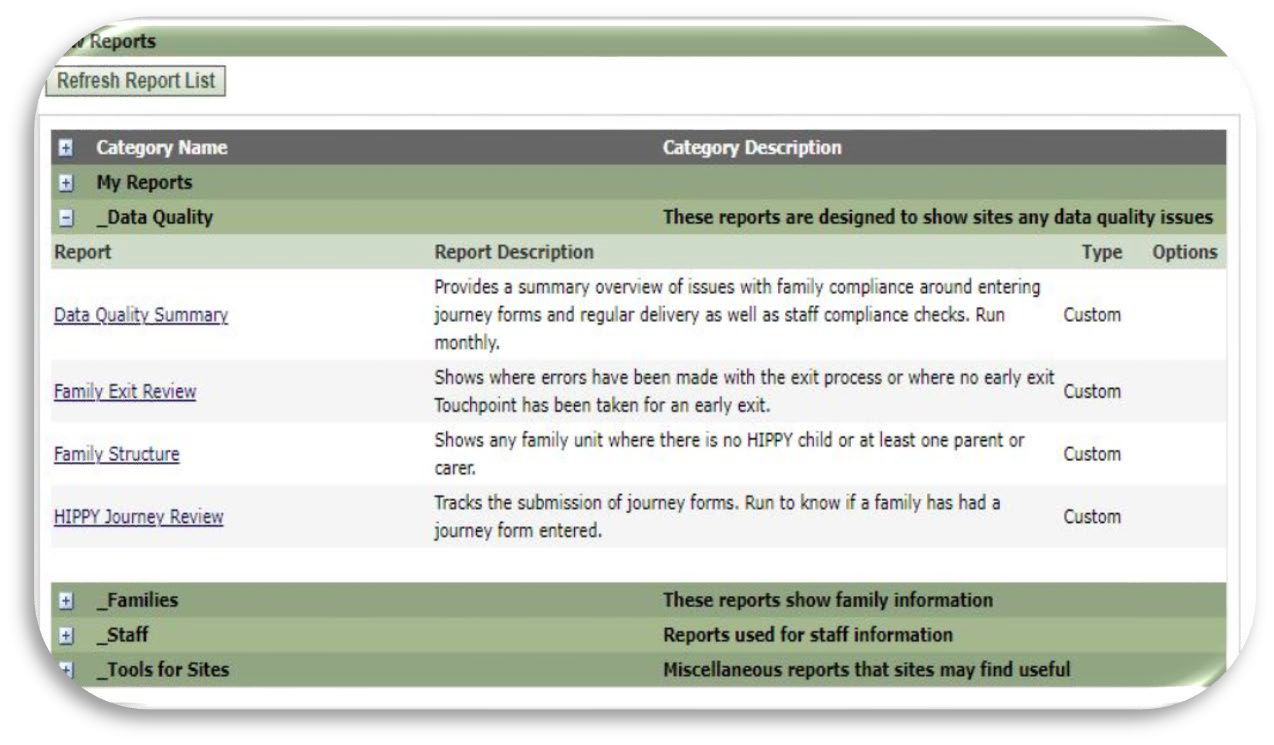
 When the page loads, click the “Refresh Report List” tab at the top of the page. This will clear any old reports from the page.
Below this button, you will see a list of report categories.
Click the plus sign (+) to the left of a category to expand categories.
Click the report name to open it
Note: Pop-ups must be enabled for ETO reports to load.
Tip: Only Coordinators and Line Managers have access to ETO reports.
ETO Report prompts
Many reports include prompts that allow filtering of data before running the report. In some cases, prompts will be pre-filled to ensure accuracy. Common prompts include:
• Date
• Site name
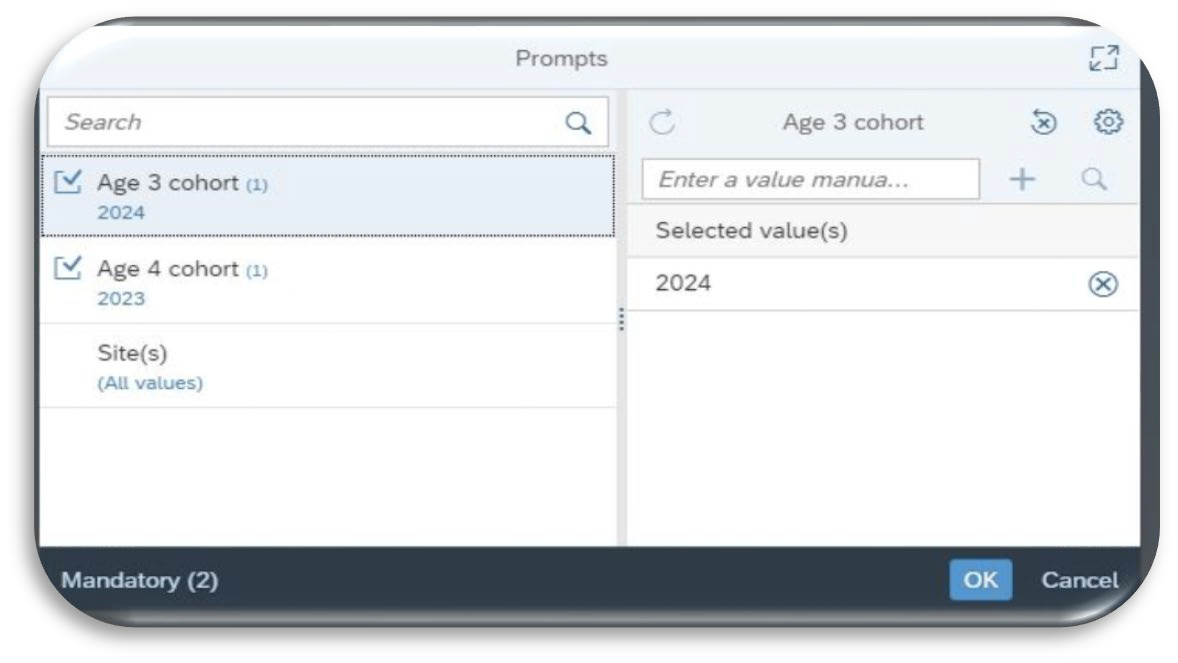
• Cohort
For example here, a report may include two cohort prompts and one site prompt. The cohorts may be pre-filled, but the site may be empty.
Always check the prompts before running the report to ensure the report loads correctly.
Click OK (blue arrow) to load.
Date Prompts
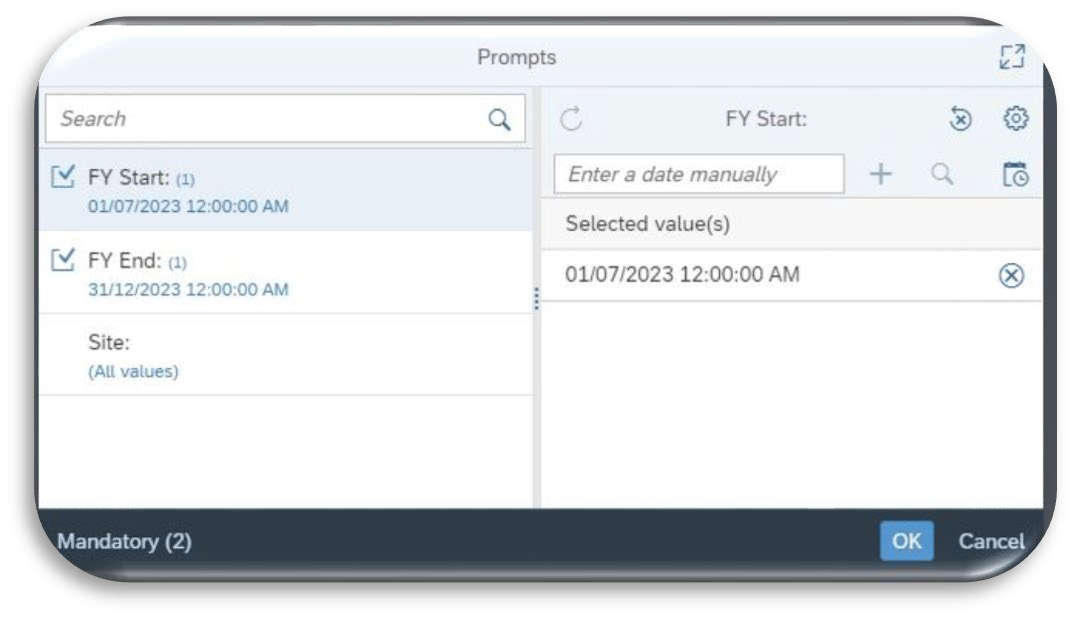
Date prompts are generally optional.
It is used to filter data for a specific date range.
Select the date prompt on the left (red arrow), use the calendar button (blue arrow) on the right, and click the OK button.
Site Name Prompts
Tip: Use the site name prompt only if you have access to multiple sites.
Leaving the field blank shows data for all accessible sites.
Select the site prompt field on the left (red arrow), click the refresh button at the top of the prompt (blue arrow) to list all accessible HIPPY sites.
Sort alphabetically if required using the sort button > sort ascending (green arrow).
Scroll to find the required site.
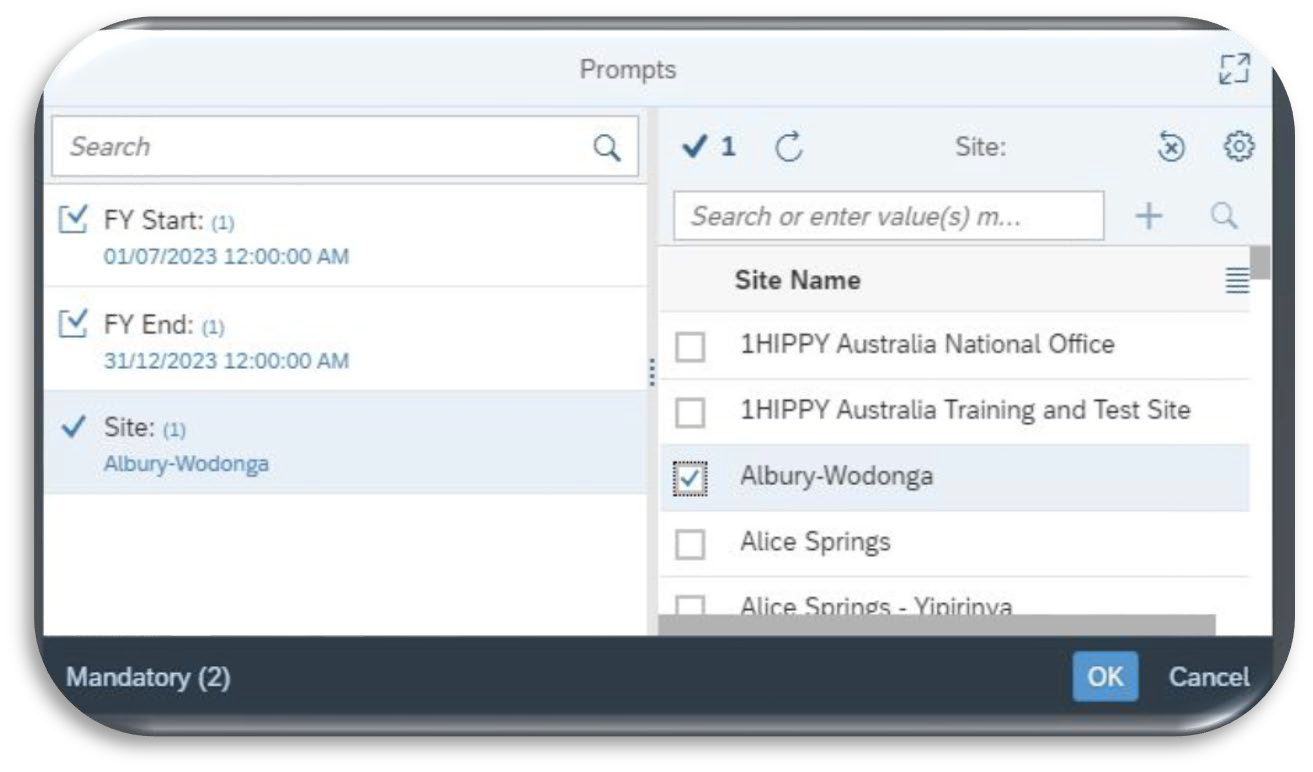
Tip: If you select a site you don’t have access to, the report will not load correctly.
Cohort Prompts
The cohort prompt is often prefilled.
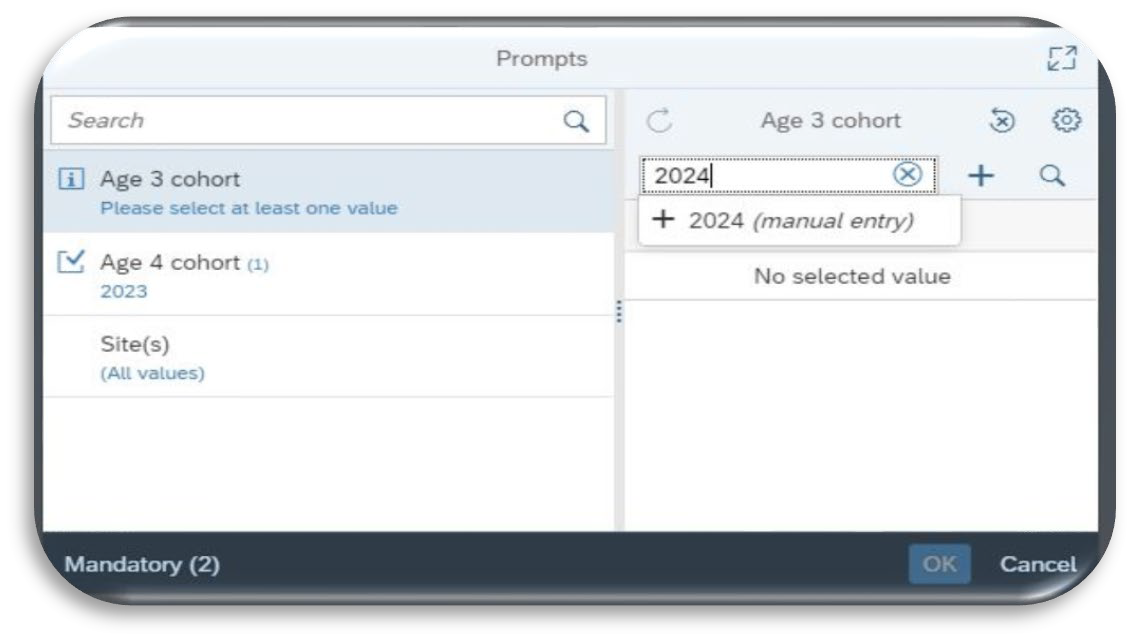
If not, select the cohort prompt on the left (red arrow), type cohort into the text field on the right and click the plus (+) sign (blue arrow).
Enter one cohort at a time for multiple cohorts.
Resetting Prompt Values
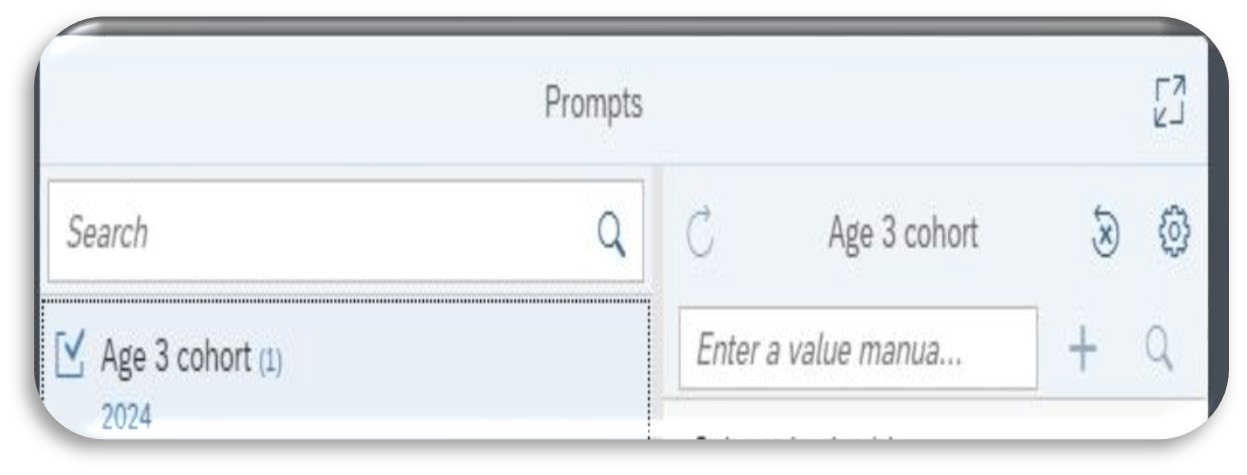
To change an existing value in the prompt, select the prompt to clear on the left, click the reset button on the right (red arrow) and proceed to enter the required value.
Mandatory & Optional Prompts
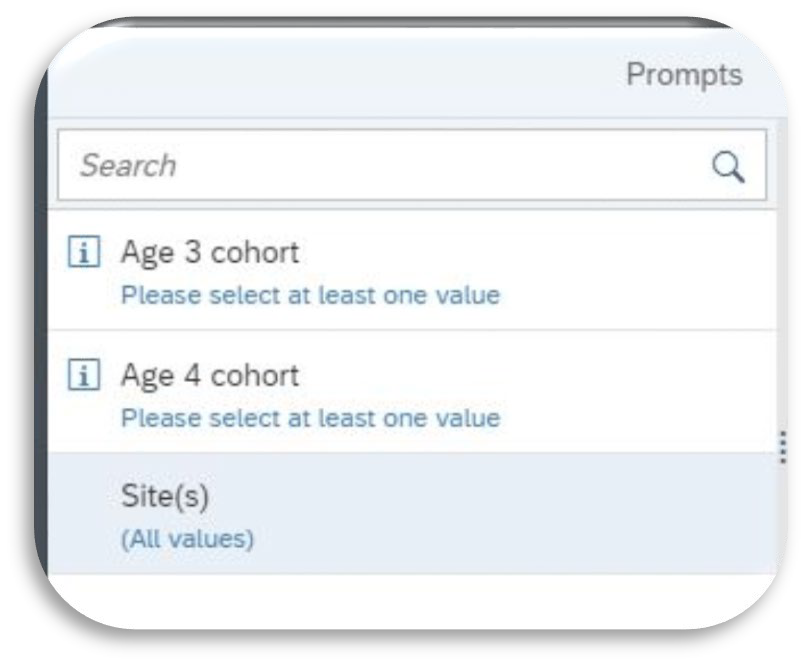
Mandatory prompts are marked with “Please select at least one value” (red arrows).
Was this article helpful?
That’s Great!
Thank you for your feedback
Sorry! We couldn't be helpful
Thank you for your feedback
Feedback sent
We appreciate your effort and will try to fix the article